Author: furtivex

  • Safe Mode & Safe Mode with Networking

    The scripts are capable of running in Safe Mode and Safe Mode with Networking

    You may wish to utilize this mode if you suspect the system is heavily infected and/or you’re experiencing a lot of lag/CPU spikes while in Normal Mode. It’s almost always faster to start the repair process here, but getting into Safe Mode may seem like a daunting task. But don’t worry, it’s easy! Follow the steps below to enter and exit Safe Mode.

    Note: The Task Scheduler cleaning portion of the scan does not work while in this mode. This is the only downside. Task scheduler is a persistence mechanism for most modern malware. The script will still hunt for and delete all other types of traces on the system. It is recommended to rerun the scan when Normal Mode becomes tenable.

    Here are the instructions to boot your Windows 10 or Windows 11 computer into Safe Mode with Networking

    Type: MSCONFIG

    Press Enter key

    The System Configuration utility appears:

    Click the Boot tab near the top

    In the Boot options area located in the bottom left of the window

    Click Safe Boot

    Click Network

    Click OK

    You’ll have the option to Restart or Exit without restart. Regardless, the next time you boot your PC, it will be in Safe Mode with Networking

    Once you are done with Safe Mode with Networking, use the MSCONFIG once again

    Uncheck Safe Boot

    Click the General tab in the top left area

    Click Normal startup

    Click OK

    Restart Now or Later
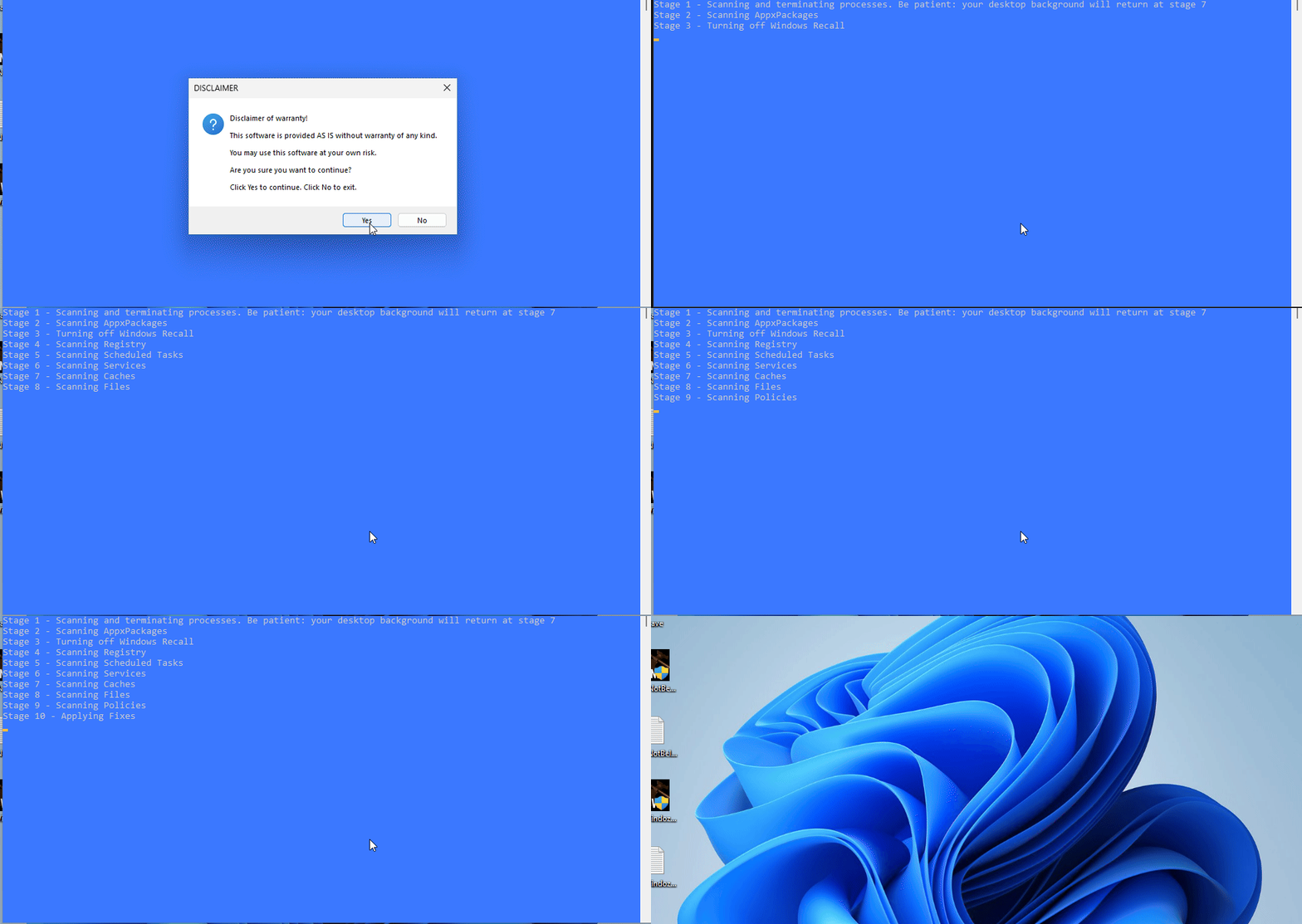
  • PrivWindoze โ€“ Windows Debloat Tool

    Overview

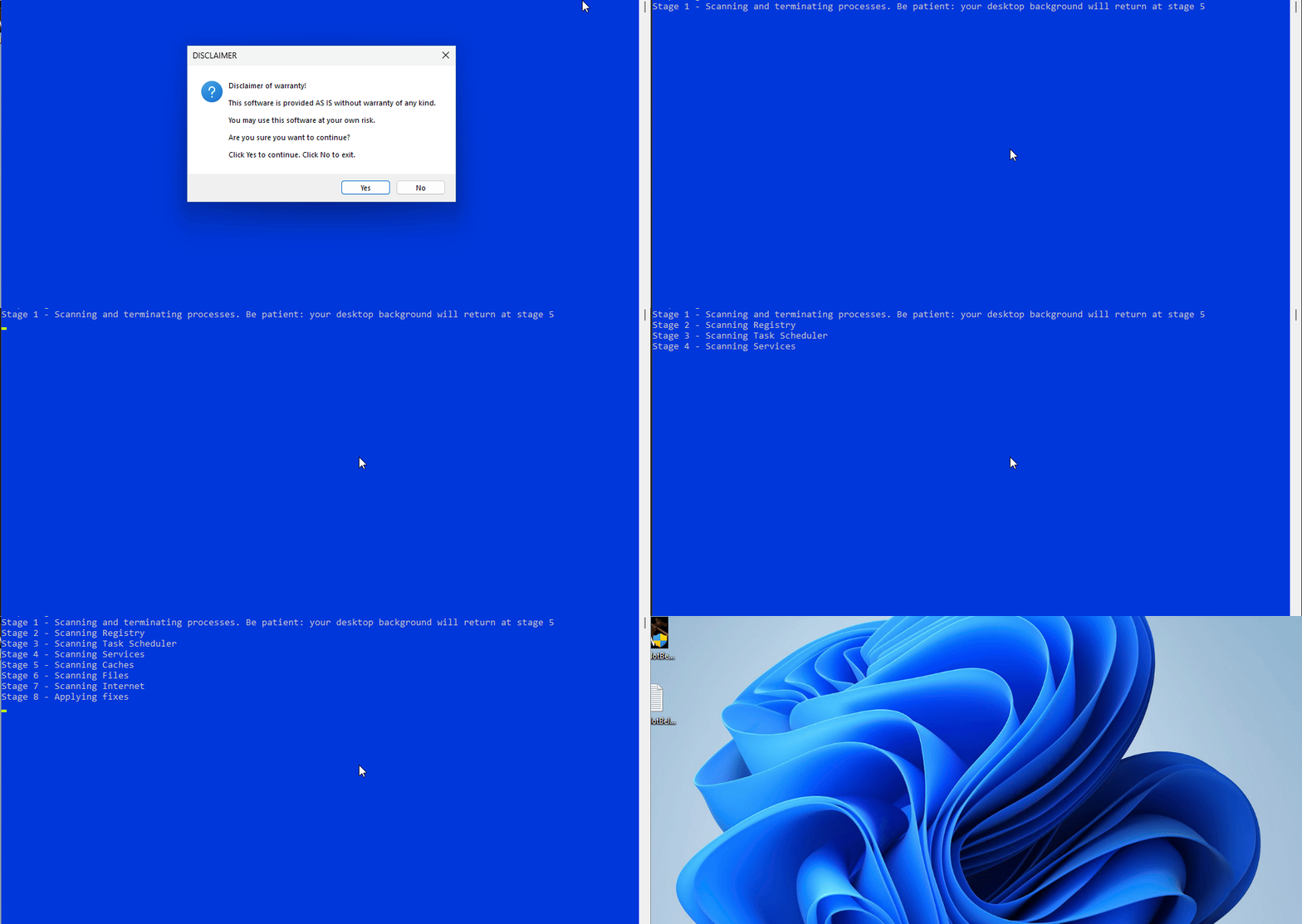
    PrivWindoze is a free, portable utility designed to identify and remove intrusive and potentially unwanted software. No installation is required โ€” simply run the program, scan your system, and review the results stored in a log file.


    Key Features

    • Detects and removes bloatware, nagware, and potentially unwanted software automatically
    • Disables data collection automatically
    • Multilingual support (22)
    • Generates a detailed scan log
    • Respects user privacy (no data is collected or transmitted)

    Supported Platforms

    • Windows 10, and 11 64-bit systems
    • Recommended to run with Administrator privileges

    Who Should Use It

    PrivWindoze is useful for:

    • Users experiencing slow or unstable Windows performance
    • Individuals wanting a leaner operating system without all the extra features Windows 10 and 11 include by default
    • Support personnel assisting others with system optimization.

    Usage Instructions

    1. Download the tool (approx. 4 MB)
    2. Right-click the file and choose Run as administrator
    3. Allow the scan to complete
    4. Review the log to see detected items and actions taken

    If you are working with a technician, share the log file to assist in diagnosing issues.


    License & Support

    PrivWindoze is offered free of charge. If you find the tool helpful, you may support ongoing development via donation.


    Disclaimer

    This tool performs system modification and may remove real system components. Use it with caution and at your own risk.

  • DoesNotBelong โ€“ Windows Cleanup Tool

    Overview

    DoesNotBelong is a free, portable utility designed to identify and remove malicious and potentially unwanted software. No installation is required โ€” simply run the program, scan your system, and review the results stored in a log file.


    Key Features

    • Detects suspicious programs and unnecessary files
    • Removes common remnants of malware automatically
    • Global reach:

    • Generates a detailed scan log
    • Respects user privacy (no data is collected or transmitted)

    Supported Platforms

    • Windows 7, 8, 10, and 11
    • 32-bit and 64-bit systems
    • Recommended to run with Administrator privileges

    Who Should Use It

    DoesNotBelong is useful for:

    • Users experiencing slow or unstable Windows performance
    • Individuals troubleshooting malware or unwanted software
    • Support personnel assisting others with system cleanup

    Usage Instructions

    1. Download the tool (approx. 4 MB)
    2. Right-click the file and choose Run as administrator
    3. Allow the scan to complete
    4. Review the log to see detected items and actions taken

    If you are working with a technician, share the log file to assist in diagnosing issues.


    License & Support

    DoesNotBelong is offered free of charge. If you find the tool helpful, you may support ongoing development via donation.


    Disclaimer

    This tool performs system modification and may remove real system components. Use it with caution and at your own risk.


    Technical Information

    The Miscellaneous section of the log provides extra details gathered from the computer that could be useful for troubleshooting:

    • List of anti-virus software installed
    • Versions of Windows Defender, Brave, Google Chrome, and Microsoft Edge found
    • If Lightspeed network filter is installed
    • Event Viewer logs detailing Windows Defender crashes and recent system boot times
    • If invisible user John (miner) was found and removed
    • If important system files are missing
    • Quarantine contents from not only DoesNotBelong, but also DrWeb, Farbar Recovery Scan Tool, and TDSSKiller โ€” Present month only
    • Scan logs from other tools such as AutoLogger, HitmanPro, Malwarebytes, RogueKiller, and TDSSKiller โ€” Present month only
    • Windows Debugger logs from CrashDumps and Minidumps folders โ€” Present month only

  • Friends

    Visit a friend’s website:

  • Research

    Browser Lock // 01.30.2025

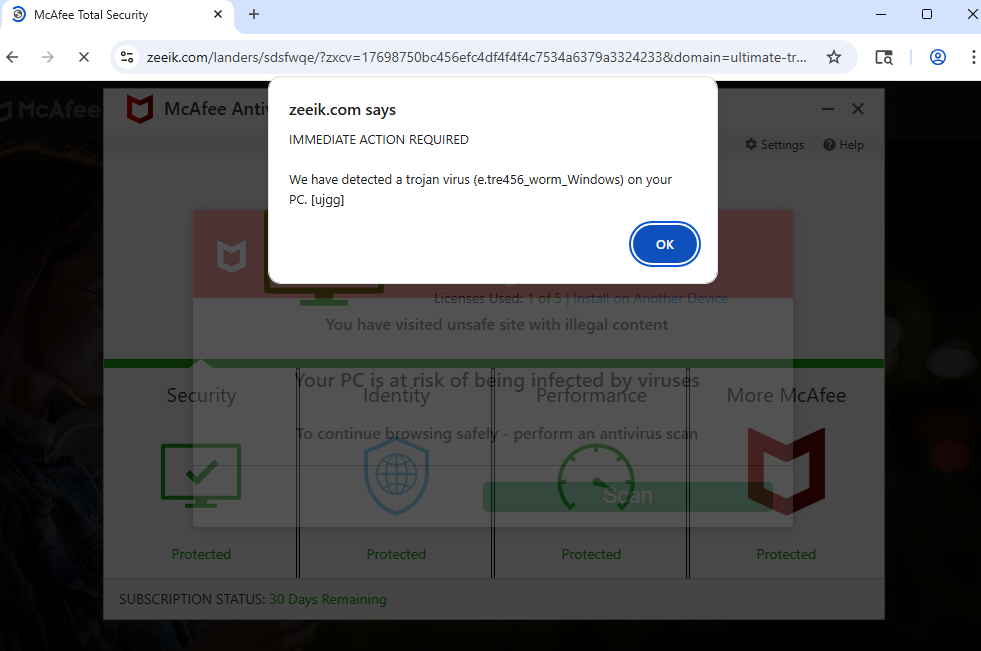
    McAfee Fake Alert // 01.30.2025

    TotalAV Fake Alert // 01.30.2025

    Norton Fake Alert // 01.31.2025

    Potentially Unwanted Software // 01.31.2025

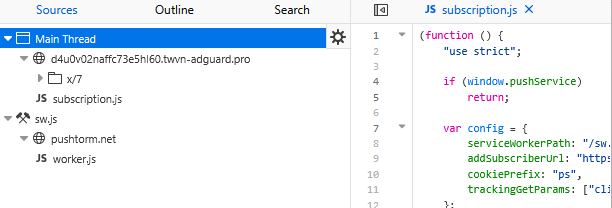
    PushNotif // 01.31.2025

    McAfee Fake Alert // 01.31.2025

    Potentially Unwanted Software // 02.01.2025

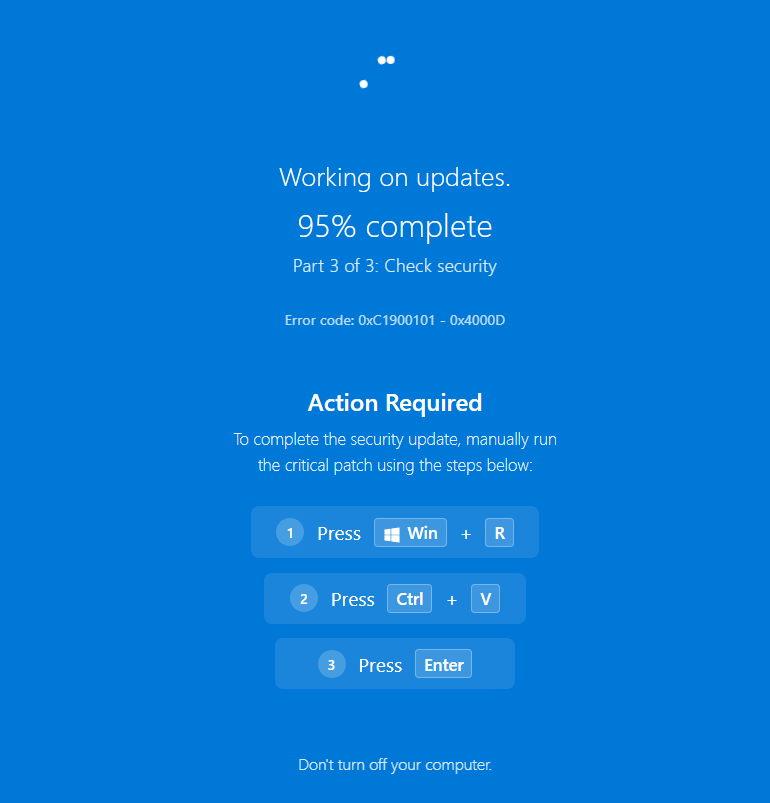
    ClickFix // 02.02.2025

    McAfee Fake Alert // 02.22.2025

    Google Safe Browsing Fake Alert // 10.05.2025

    ClickFix // 10.12.2025

    Potentially Unwanted Software // 11.28.2025

    PushNotif // 12.12.2025

    McAfee Fake Alert // 01.30.2026

    ClickFix // 02.08.2026

    ClickFix // 03.14.2026