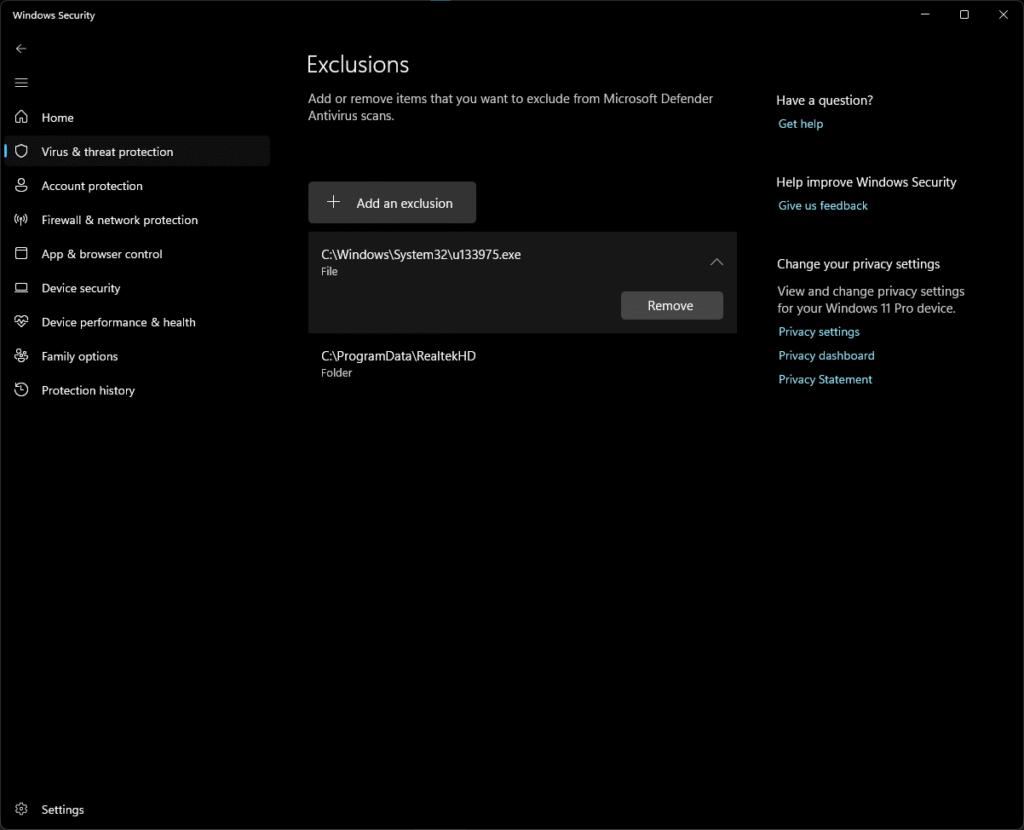
Many newer forms of malware are adding an exclusion into Windows Defender when they initially bypass the antivirus. This is to prevent its detection and removal for when Windows Defender catches on and updates their virus signatures. It assumes the user manually added it.
After you’ve cleaned the system from any malware, it’s a good idea to remove any exclusions you don’t recognize.
Here’s a guide on how to manage Windows Defender exclusions:
Click the Start button / Windows logo on your Taskbar:
Select Settings:
Click Privacy & security:
Click Windows Security:
Choose Open Windows Security:
Choose Virus & threat protection:
Choose Manage Settings:
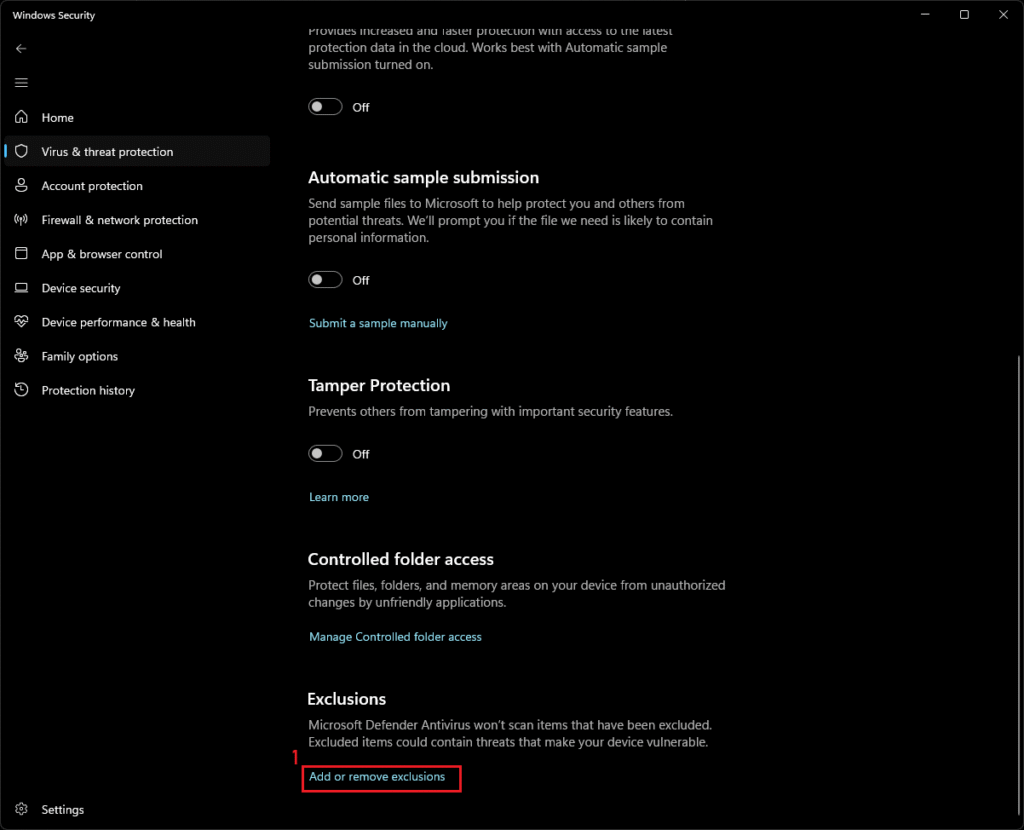
Scroll down towards the bottom of this page until you find Exclusions. Select Add or remove exclusions
From this list, you should be able to click any entries you don’t recognize and remove them. This area, by default, is empty
This page contains a small collection of tools and references I regularly use in my work as a computer technician. Each link serves a practical purpose — whether it’s diagnosing issues, cleaning compromised systems, or streamlining common troubleshooting tasks.
These resources are provided as-is and are shared for other technicians or advanced users who may find them useful in real-world support and remediation scenarios.
Thanks for considering to donate. While I do this as a hobby and for my own enjoyment, it means a lot to me that you appreciate the projects here and would be willing to financially support the tools. Below are some of the platforms I use
So… I little about myself, yes? “Furtivex” is an online alias I started using while playing the video game, “World of Warcraft”, which I’ve played on and off for about 20 years. I guess you can say I am the traditional gamer nerd who enjoys things like programming, upgrading, building, and fixing computers. Other hobbies of mine include jiu-jitsu and trying to help users online rid their PCs of malware. Problem solving and becoming efficient has always been a focus of mine.
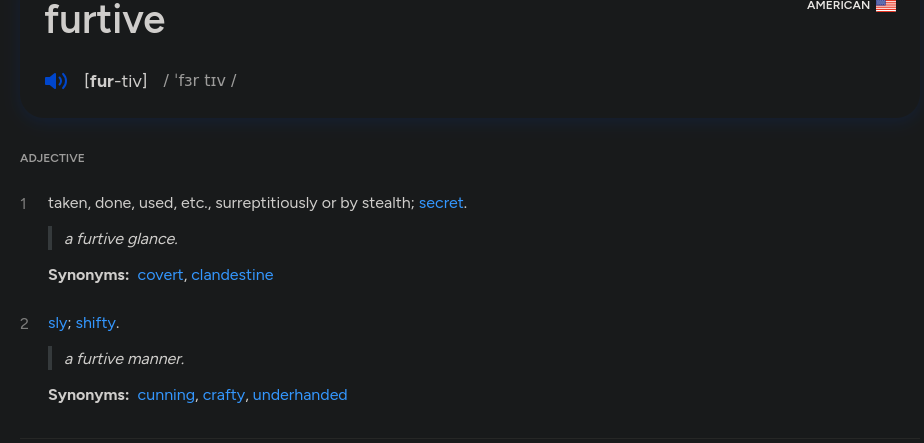
For those that may not know, furtive means:
It is a word I read in the book, “The Rough Riders” by Theodore Roosevelt in my early twenties. After looking up its meaning, it resonated with me a lot throughout the years for various reasons. I felt like I should try to explain this because quite a few people have simply assumed I’m either 1). a furry or 2). a malicious actor creating and spreading a bot.
Furthermore, I was taught, or at least encouraged, to erase my tracks after repairing a computer. The first computer repair store I worked at would run various commercial tools, and then uninstall them all afterwards; as to leave no trace on the customer’s computer. I actually liked this notion and took it pretty seriously.
My programming adventures began here with this concept in mind. Due to the nature of some uninstallers not being very thorough, I took it upon myself to remove the additional traces (files, services, registry keys, folders, etc..) that were left behind manually. Soon enough, I started looking into ways to automate these few steps, and that is what got me into batch scripting. I’ve grown to like batch programming simply because it was native to Windows. What started out as a two kilobyte batch file has propelled me to remove all types of unwanted items from Windows PCs with this minimalist mindset.
The rest is history, as they say. I expanded this initial batch script to start removing unwanted adware — toolbars, browser helper objects, searchscopes, and more that were being undetected by existing and popular clean up tools. This was how Junkware Removal Tool came to fruition in ~2014. That was just me trying to improve and speed up my clean up process and provide a lower turnaround time on computers I was tasked to repair.
This is also the theme of my existing tools, DoesNotBelong and PrivWindoze. The thought process remains the same, fix the PC and remove the ability of the customer to realize you ran this particular tool on their system (furtive!)
My professional background is mostly centered around computer repair and cybersecurity. I have always enjoyed technology and am trying to get into more advanced technical roles. I’ve also added a couple of certifications to my portfolio: CompTIA’s Security+ and CySA+.
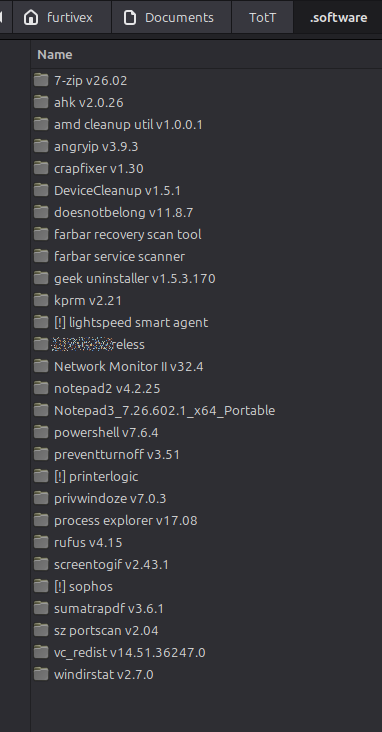
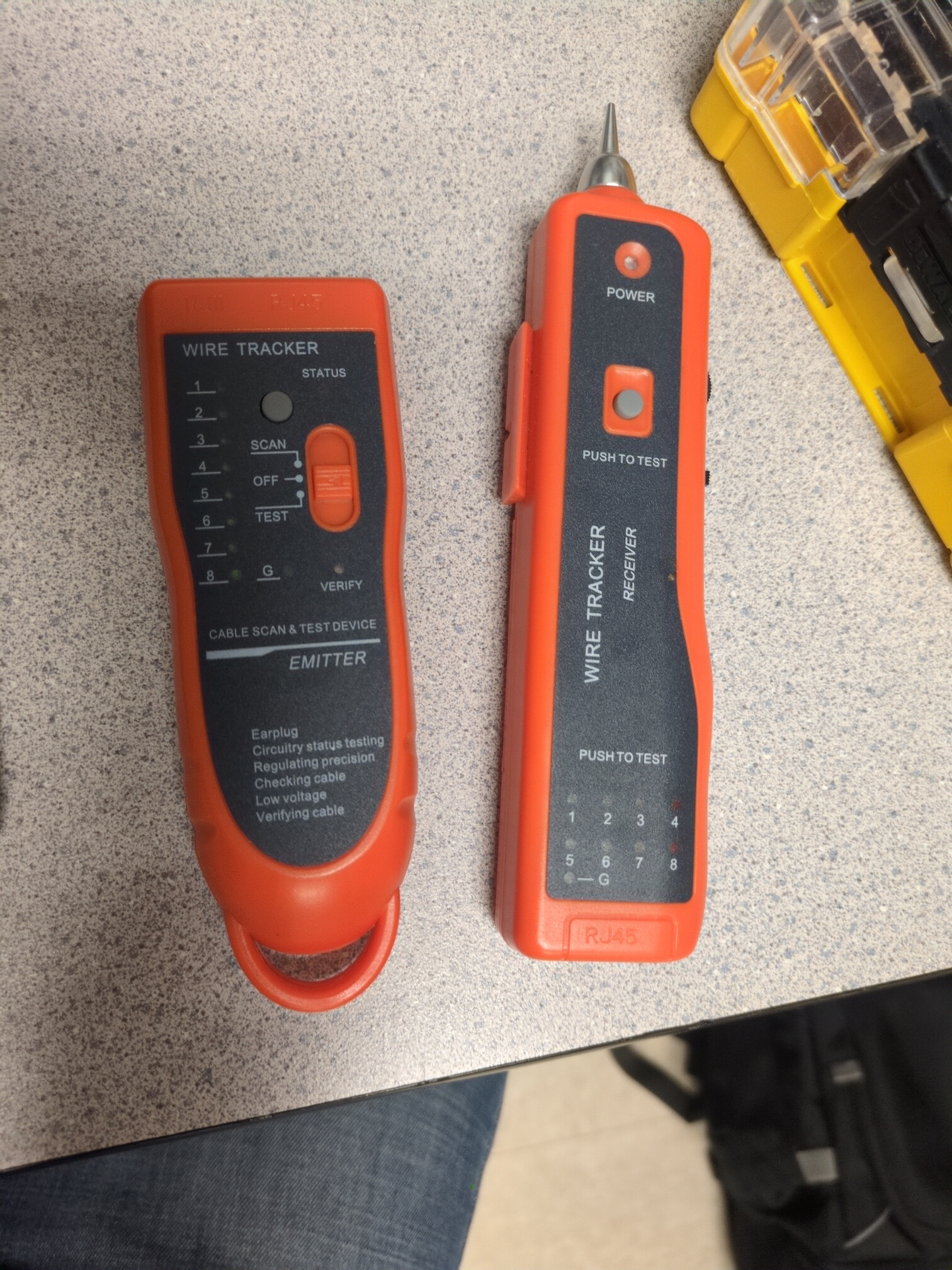
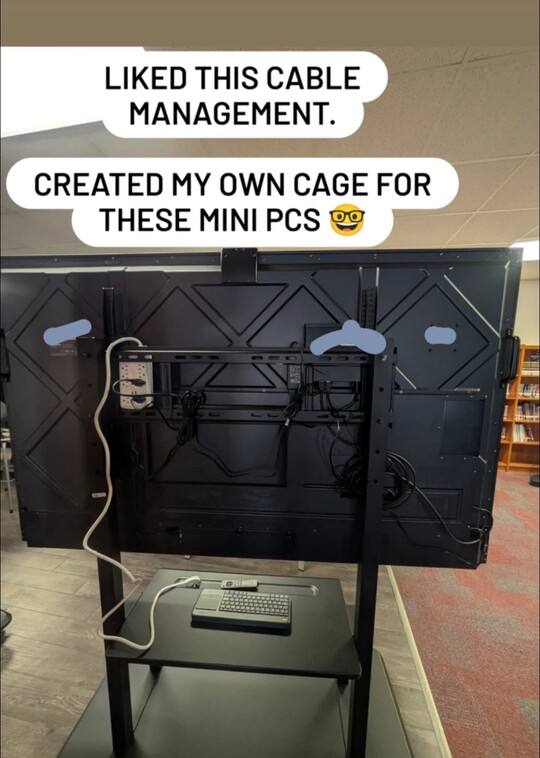
I would like to thank those that have helped me along the way, whether through inspiration or if you’re someone I worked alongside in the past. Glenn from my very first computer repair job taught me the importance of an organized up to date toolkit. I will show how portion of mine looks these days:
Carl taught me the importance of people skills, and due to my flourishing social media career, you can see that has improved drastically. /s
Edward, alias : sUBs, who I worked with during my tenure at Malwarebytes, inspired me a lot through his innovative mind. He unfortunately passed too soon. Rest in peace my friend.
I am looking for additional consulting work. I can be contacted at: jobs «at» furtivex [.] net
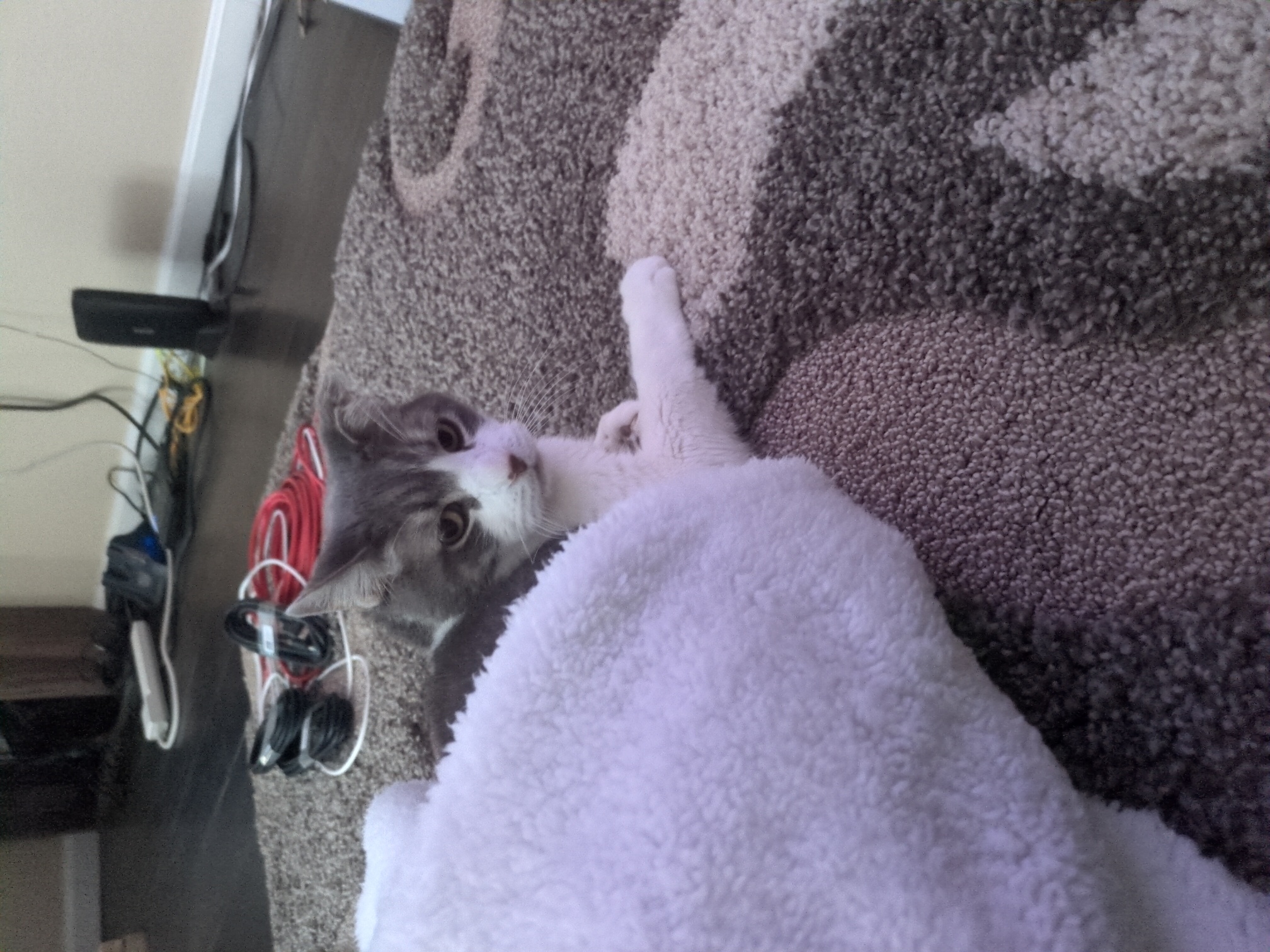
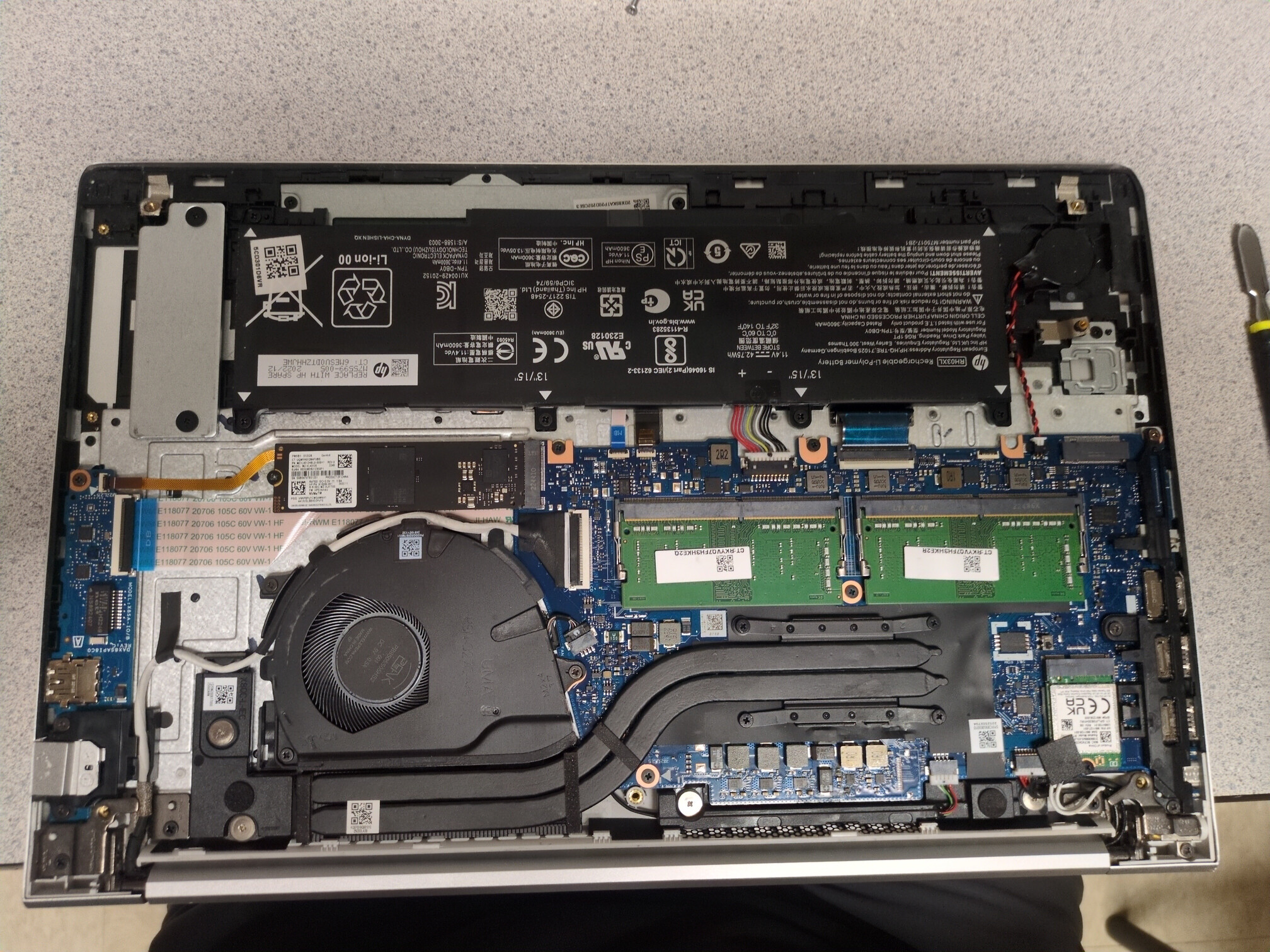
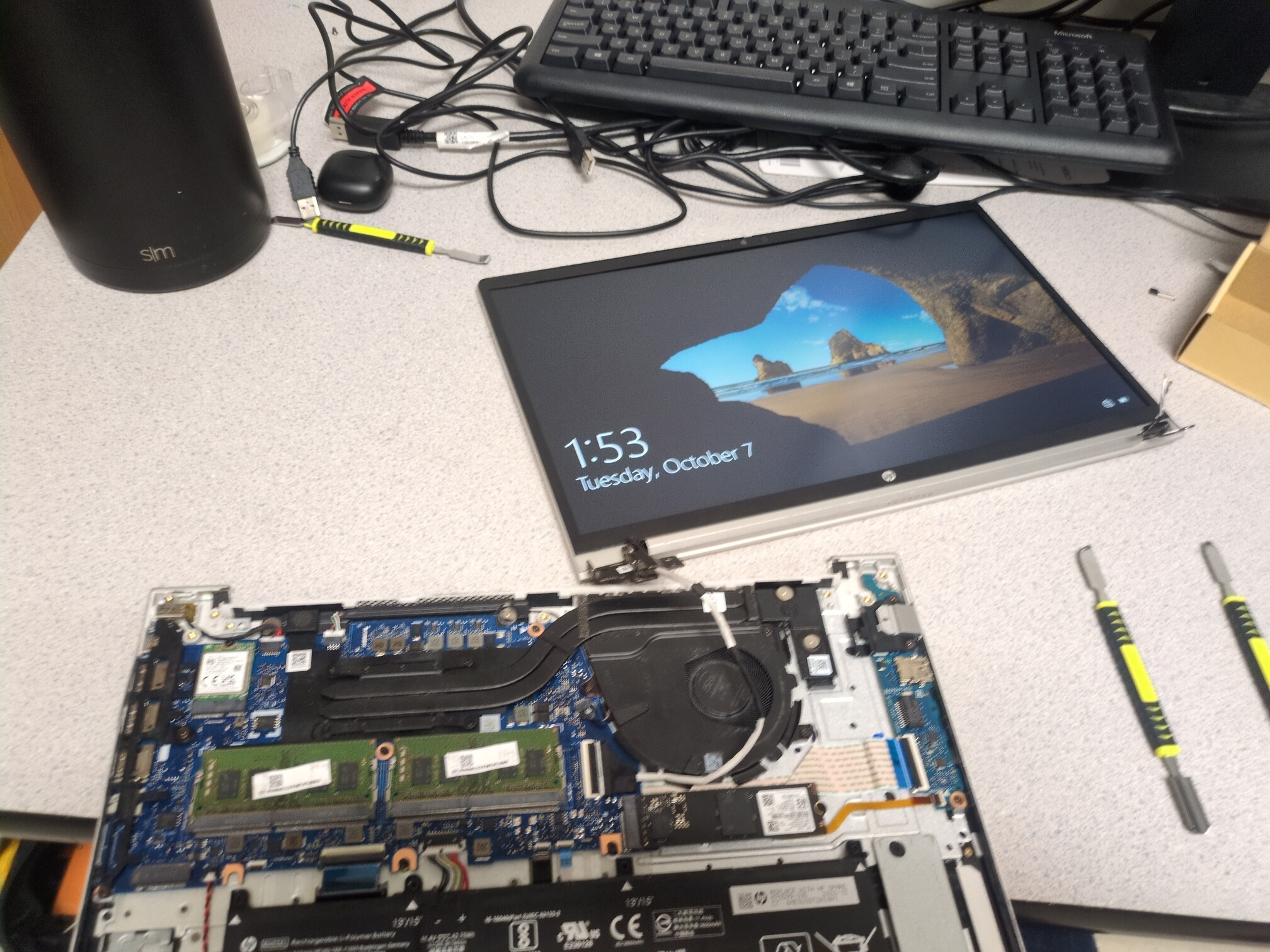
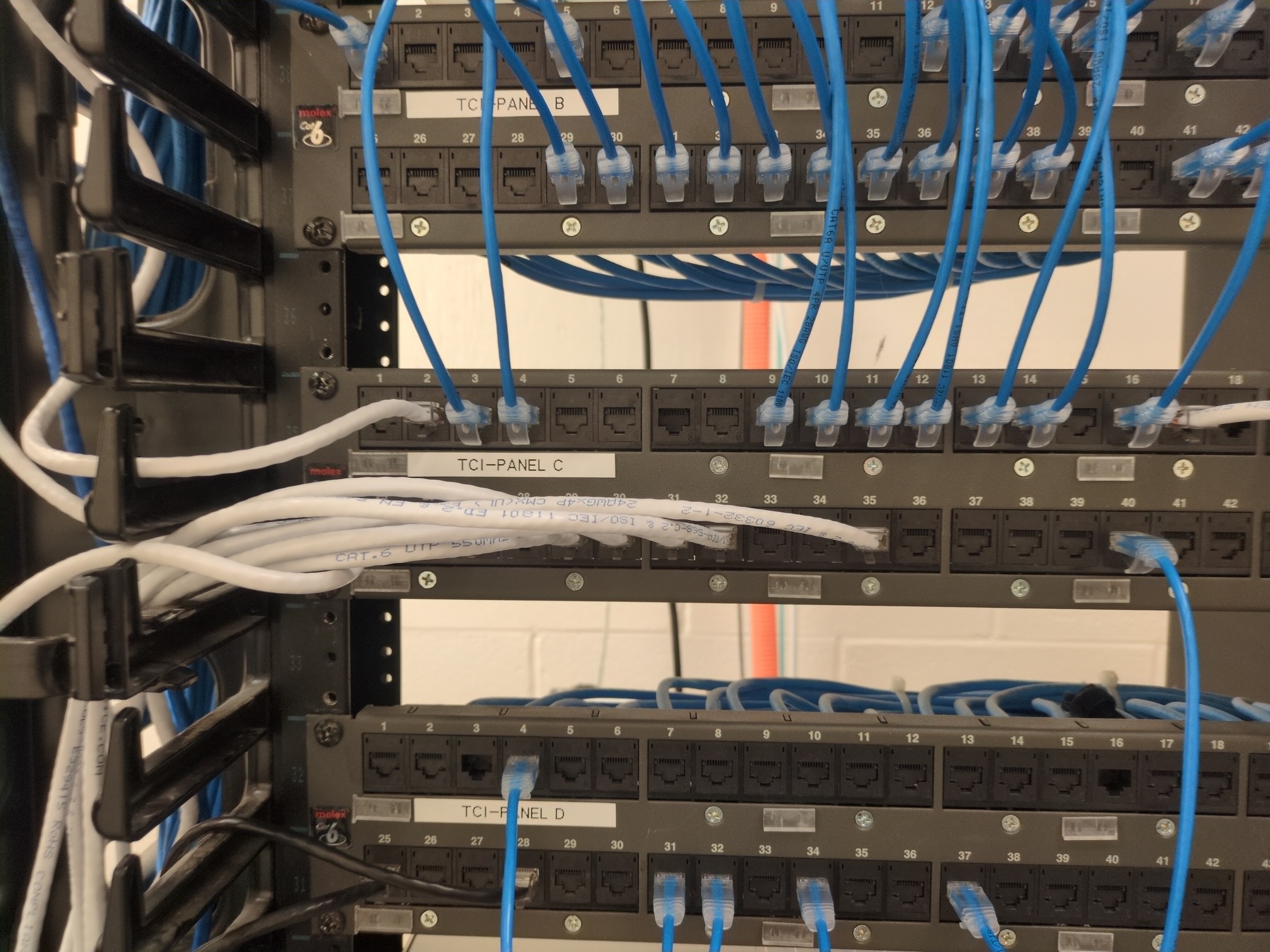
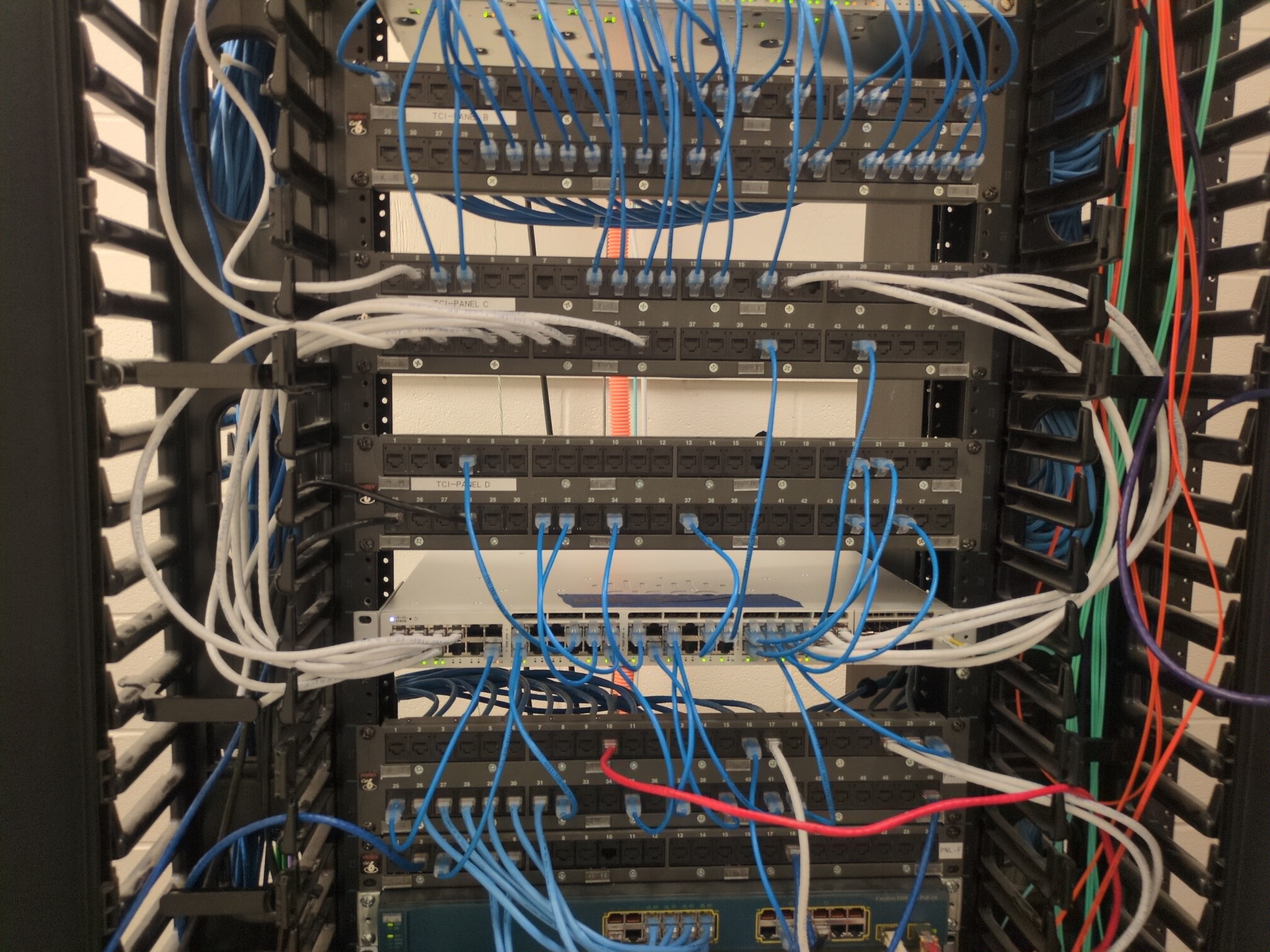
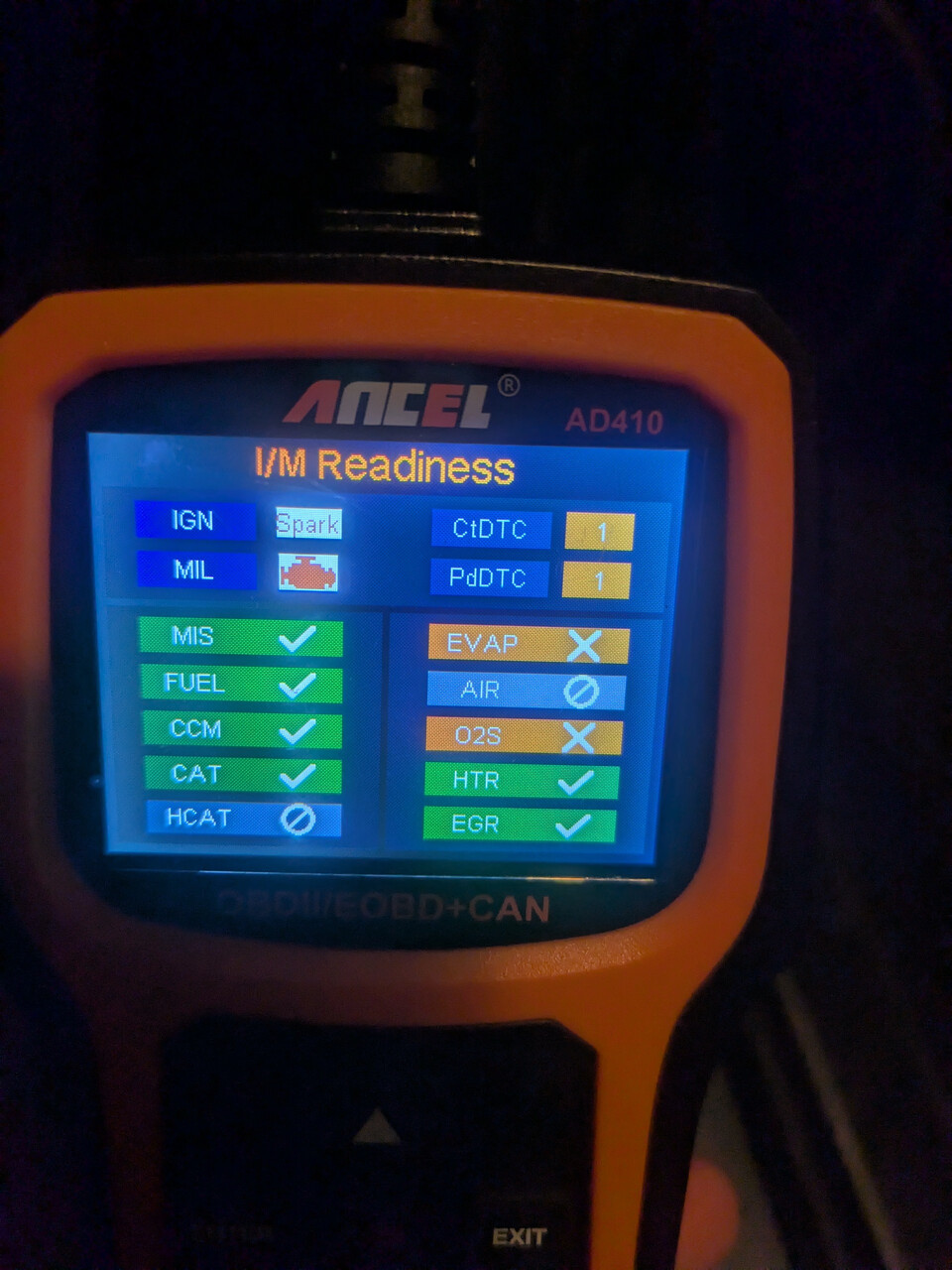
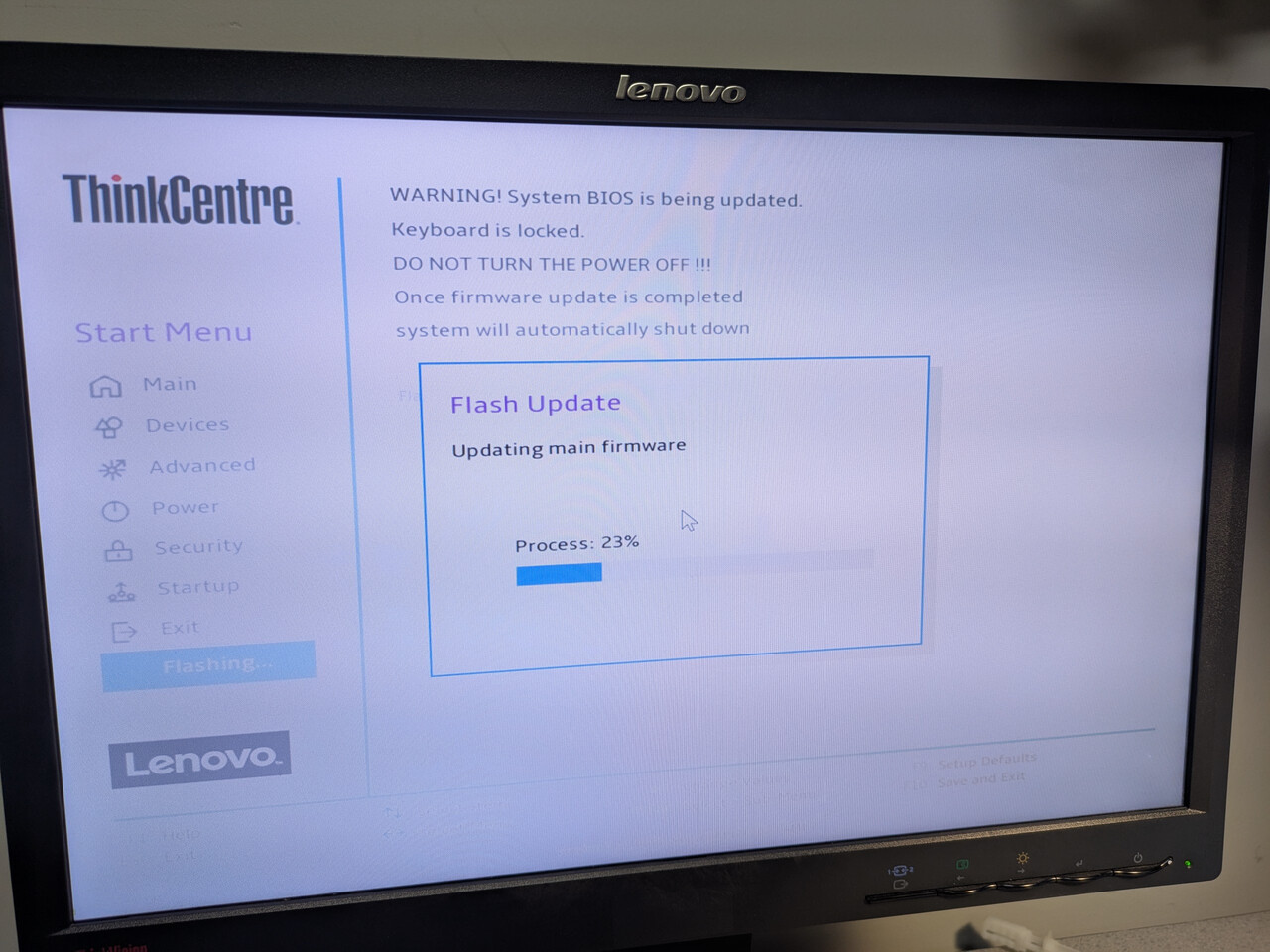
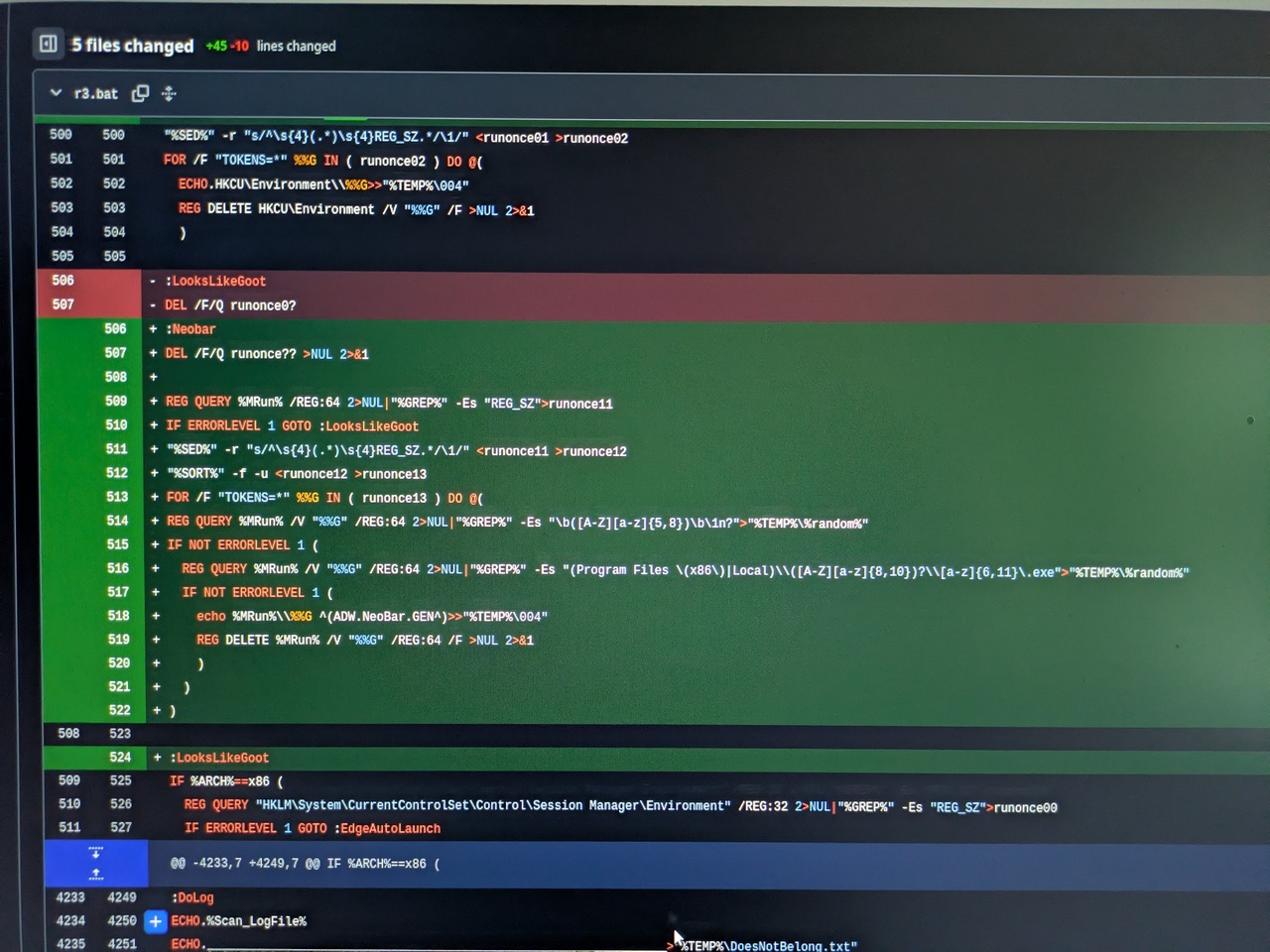
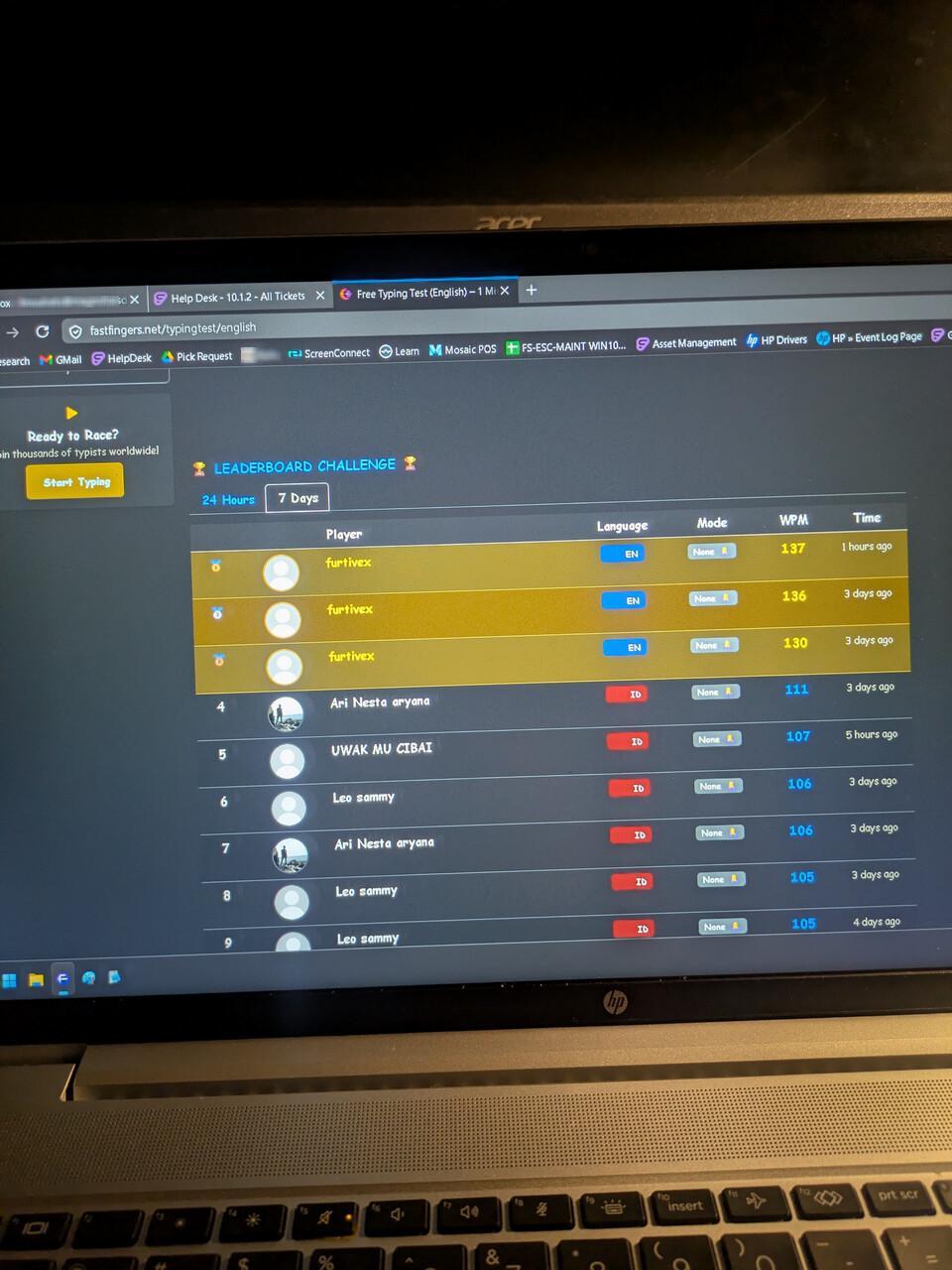
Lastly, here are some photos I’ve taken over recent years:
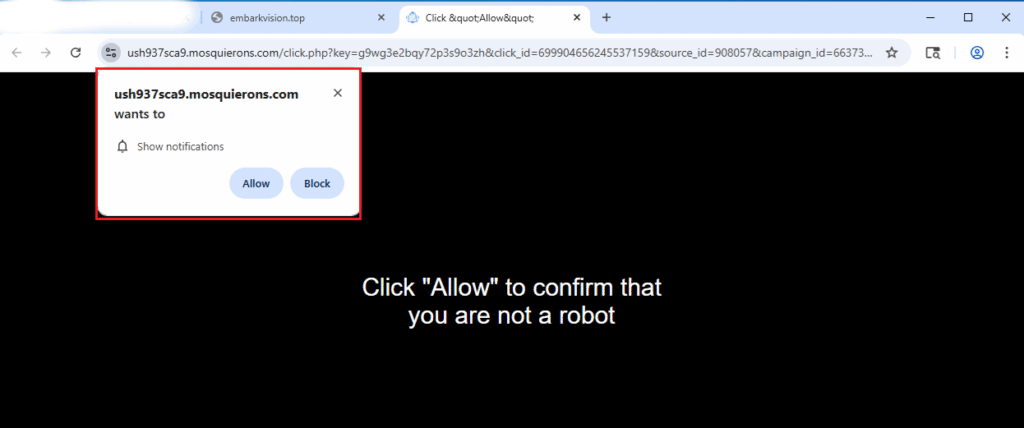
If you have ever been using a browser and suddenly received a pop-up such as this one:
Close the tab instead of clicking ‘Allow’ or ‘Block’
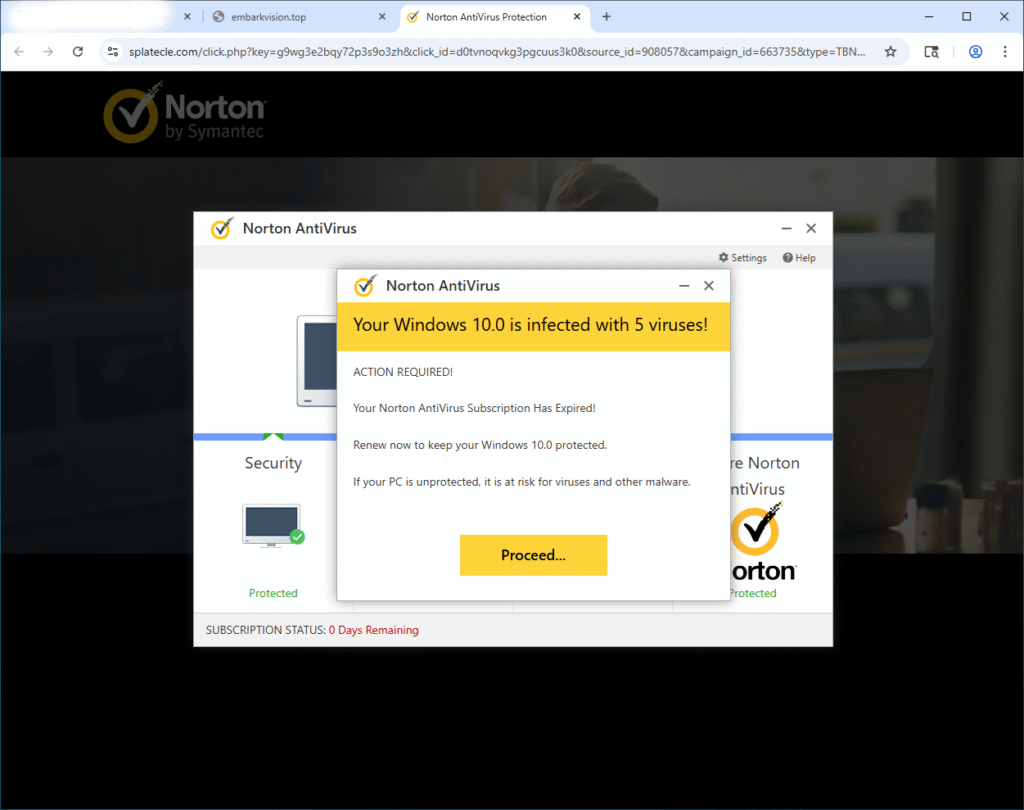
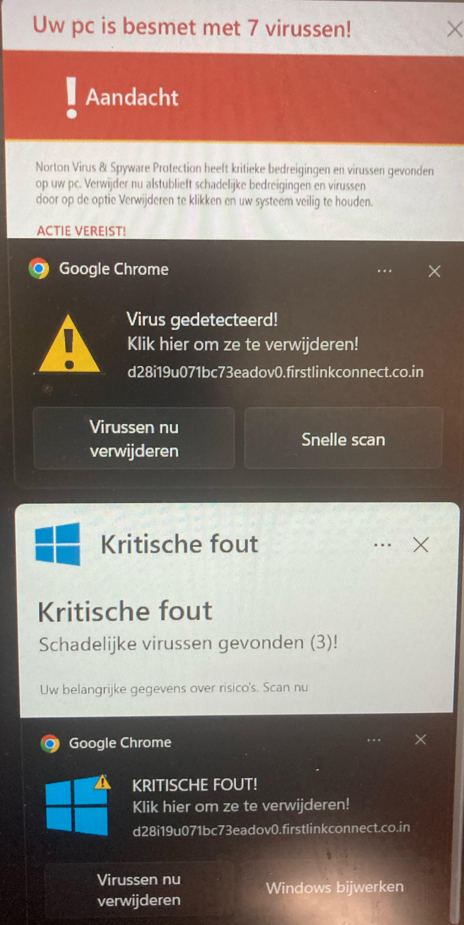
If you press “Allow”, you not only add a setting to your browser that you won’t like, but you’ll start to get inundated with notifications (FakeAlerts) such as these:
Some of these show up in your browser, and some will appear in the bottom-right corner of your screen
It’s important to note that these are fake alerts designed to scare you into clicking “Install antivirus”, “Proceed..” etc. Essentially, they want you to visit a website of their choosing. Usually they receive some sort of payment for sending you there
It’s important to be aware of what you click.
If you need help with removing this type of problem, check out DoesNotBelong as it aims to automatically fix this problem for Windows users.
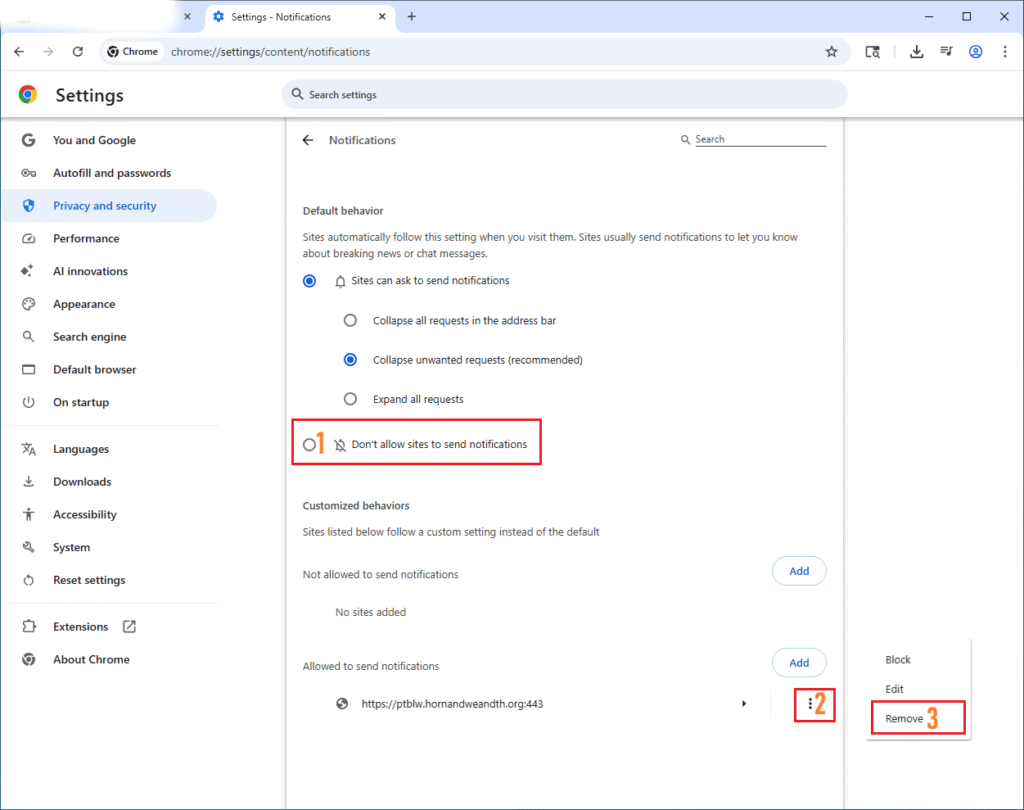
If you’d like to do this yourself, open your browser (Microsoft Edge, Google Chrome, etc..) and type one of these into the address bar and then press ENTER:
edge://settings/content/notifications
chrome://settings/content/notifications
brave://settings/content/notifications
about:preferences#privacy <– Use this if on Firefox
From this page, you should be able to immediately find the offending entry:
Once you click Remove, the offending pop-ups should immediately disappear if they were active on your screen.
Afterwards, consider using an adblocker and updating your hosts file.