Tag: windows

  • How to Turn Off Windows Defender Real-Time Protection

    Here are some facts about Windows Defender with a guide on how to turn off its real-time protection

    Windows Defender is the default antivirus solution for computers running Microsoft Windows 10 and 11.

    You can’t uninstall or remove Windows Defender, but you can disable its real time protection.

    If you install additional antivirus to the computer, Windows Defender will remain dormant on the system.

    Here are the steps to toggle real-time protection:

    Click the Start button / Windows logo on your Taskbar:

    Select Settings:

    Click Privacy & security:

    Click Windows Security:

    Choose Open Windows Security:

    Choose Virus & threat protection:

    Choose Manage Settings:

    Click the bar to toggle between On and Off. Leave it in the OFF position to disable real time protection

    When you are finished cleaning your system or running the software you wish to run without interference, turn Real-time protection back ON

    Hopefully you found this guide useful!

    -Furtivex
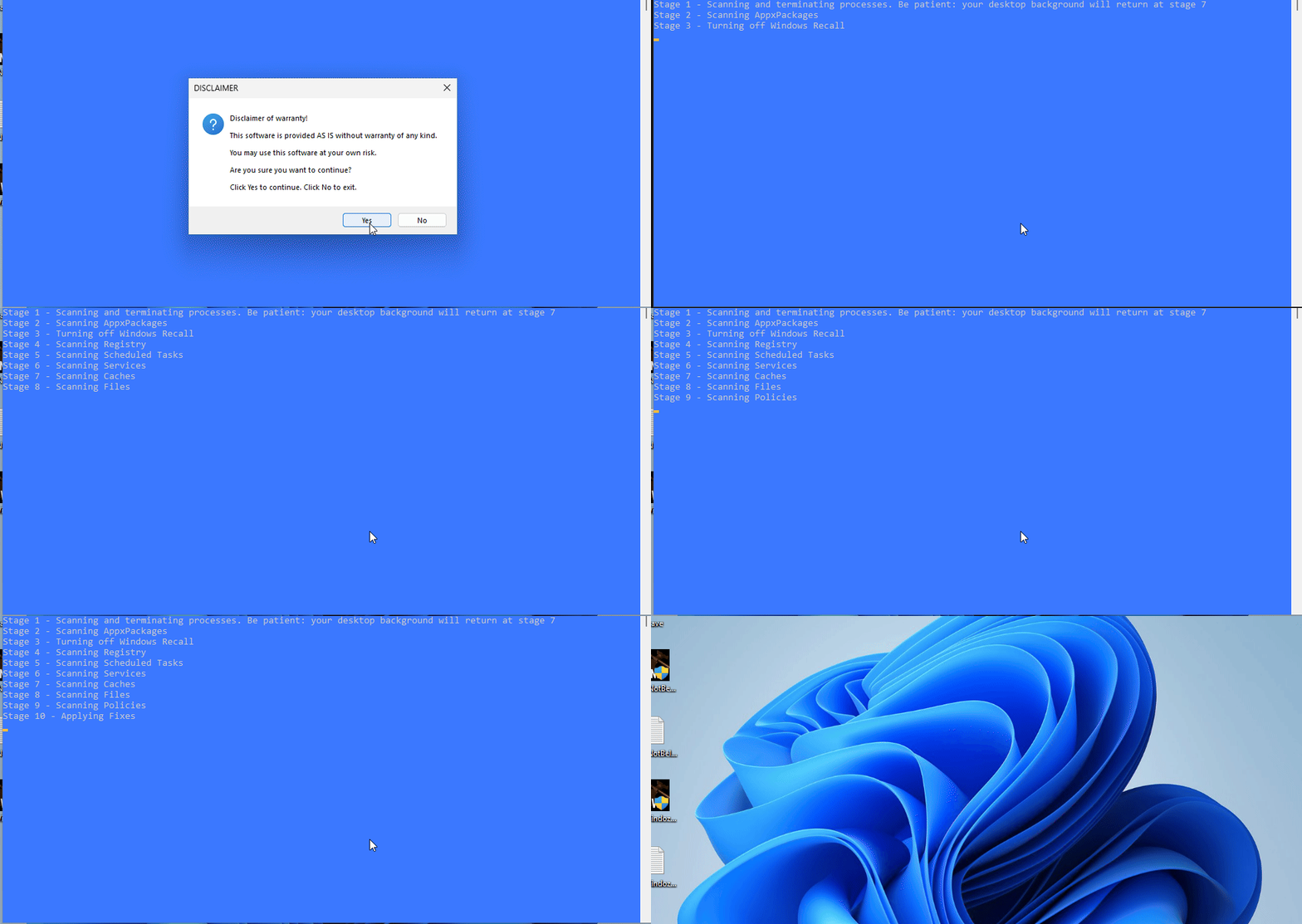
  • PrivWindoze – Windows Debloat Tool

    Overview

    PrivWindoze is a free, portable utility designed to identify and remove intrusive and potentially unwanted software. No installation is required — simply run the program, scan your system, and review the results stored in a log file.


    Key Features

    • Detects and removes bloatware, nagware, and potentially unwanted software automatically
    • Disables data collection automatically
    • Multilingual support (22)
    • Generates a detailed scan log
    • Respects user privacy (no data is collected or transmitted)

    Supported Platforms

    • Windows 10, and 11 64-bit systems
    • Recommended to run with Administrator privileges

    Who Should Use It

    PrivWindoze is useful for:

    • Users experiencing slow or unstable Windows performance
    • Individuals wanting a leaner operating system without all the extra features Windows 10 and 11 include by default
    • Support personnel assisting others with system optimization.

    Usage Instructions

    1. Download the tool (approx. 4 MB)
    2. Right-click the file and choose Run as administrator
    3. Allow the scan to complete
    4. Review the log to see detected items and actions taken

    If you are working with a technician, share the log file to assist in diagnosing issues.


    License & Support

    PrivWindoze is offered free of charge. If you find the tool helpful, you may support ongoing development via donation.


    Disclaimer

    This tool performs system modification and may remove real system components. Use it with caution and at your own risk.